Guide to Enabling Third-Party Organisation Access in Workpapers Sorted
This article provides a step-by-step guide on how to change a user's permissions, specifically upgrading their role to "Advisor" within your Xero organisation. The Advisor role grants full access to all areas of Xero, including advanced accounting features, manual journals, and the ability to lock transaction dates, which is often necessary for accountants and bookkeepers.
Follow the steps below to update a user's permissions to the Advisor role.
Step 1: Navigate to Settings
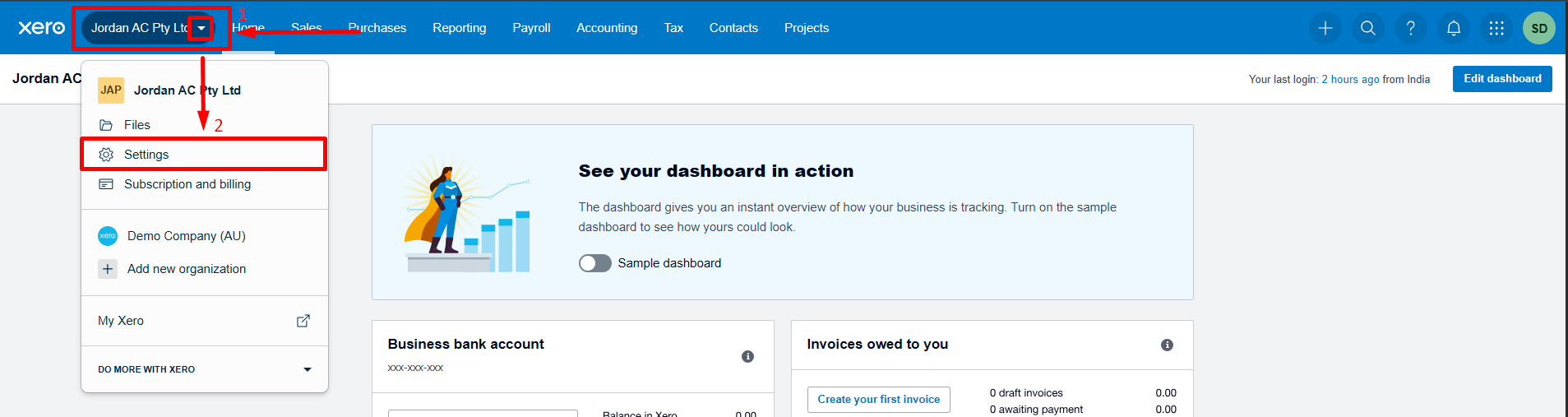
Log in to your Xero Ledger. From the dashboard, click on your organisation's name in the top-left corner of the screen.
Step 2: Select 'Settings' from the Menu
A dropdown menu will appear. Click on Settings.
Step 3: Access the Users List
On the Settings page, under the General section, click on Users. This will take you to a list of all current users in the organisation

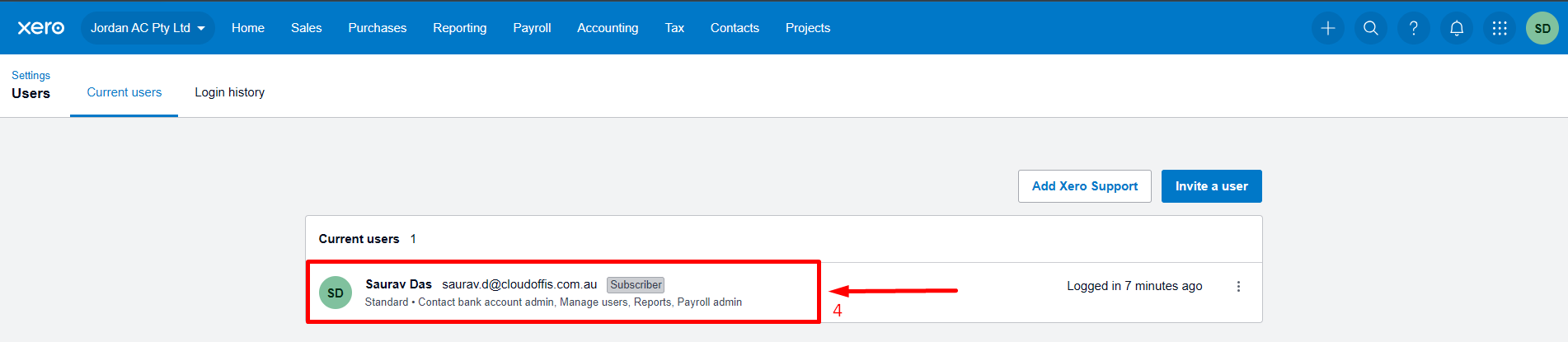
Step 4: Select the User to Edit
From the list of current users, find and click on the name of the user whose permissions you wish to update.
Step 5: Change the Role to Advisor
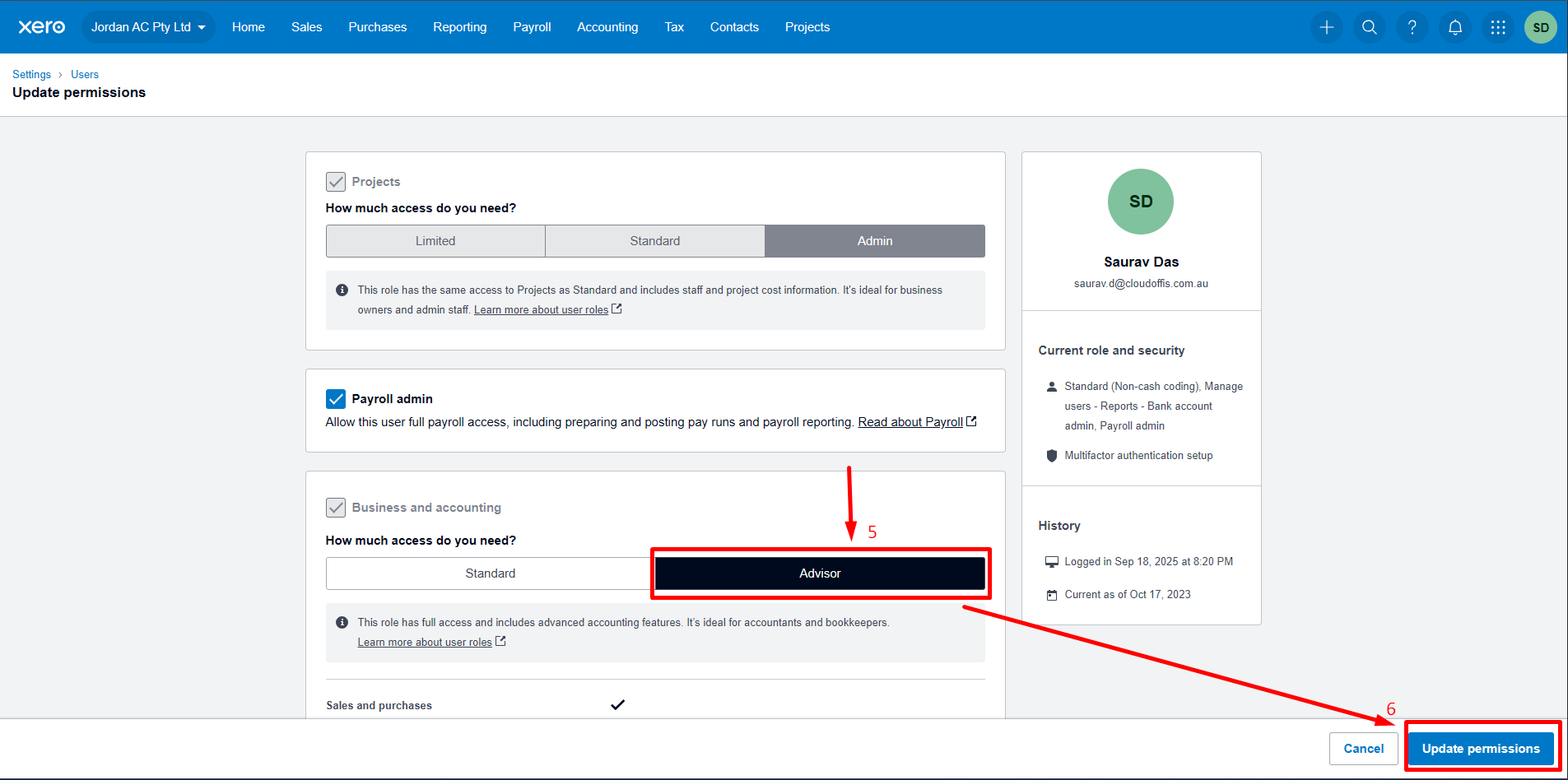
You will be taken to the Update permissions page for that user. Scroll down to the Business and accounting section and select the Advisor role.
Step 6: Save the Changes
Click the blue Update permissions button at the bottom-right of the page to save the new role assignment.
By completing these steps, you have successfully elevated the user's permissions to the Advisor role.
To learn more about the process, explore best practices, and make the most of our features, please visit our Knowledge Base. Contact our Support team if you need any assistance.