How to Re-assign Staff From Fund dashboardd
Introduction
If you need to reassign an existing job to a different staff member directly from the fund dashboard, follow the steps below to smoothly update the assignment.
How to Reassign Staff
Step 1: Go to the Fund Dashboard for the fund where you want to reassign staff.
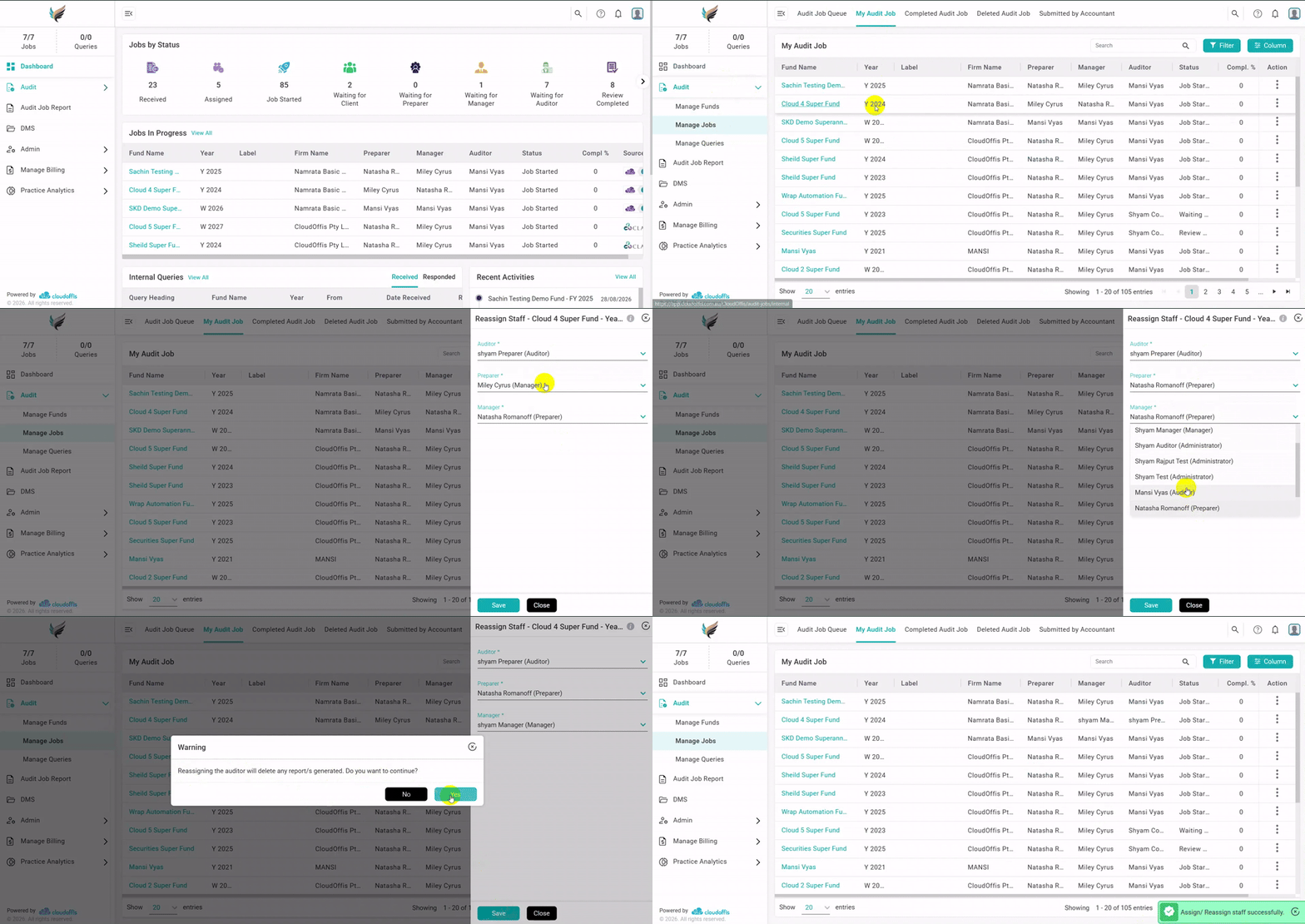
Step 2: Scroll down to the Relationship section and click on the Re-Assign Staff button.
Step 3: Once the dropdown is enabled, choose the new staff member from the dropdown list .
Step 4: This will enable the Save button, click on Save to proceed further.
Step 6: If you re-assign the auditor, a confirmation message will pop-up on the screen. Click on Yes to continue.
Step 7: The staff member will now be successfully reassigned to the job.
Quick Video Guide
To learn more about the process, explore best practices, and make the most of our features, please visit our Knowledge Base. You can also check our FAQ section for answers to common questions, contact our Support team if you need any assistance.